 fyllyo
Choosing a PDF form filler for Mac
Typing your address into one PDF and preparing a client’s form from several documents are different jobs. Choose the method that handles your actual work, then compare where it runs, how you review it and what it costs.
What work are you trying to finish?
Choose by the information you start with and the result you need. A field editor, a contact AutoFill tool and an AI workflow that reads source documents solve different parts of preparation.
| Your task | A sensible starting point |
|---|---|
| Enter known details and add a signature | Try Preview first. A bundled tool may already finish the job. |
| Read client documents and prepare the same form repeatedly | Evaluate document-to-form AI, including Fyllyo for local processing on an Apple silicon Mac. |
| Choose and configure your own AI route inside an editor | Evaluate a configurable editor such as SimplePDF Copilot, including its setup and hosting requirements. |
| Edit page content, create form fields or convert a scanned blank | Choose software that explicitly supports that editing or conversion task; do not assume a form filler also does it. |
When is Preview enough?
Preview is a useful first option when your information is already known and the work is entering fields, adding text or signing. Apple also documents contact AutoFill for supported PDFs, using information from Contacts.
That does not make all automation the same task. Choosing a contact record is different from reading a return, a corrected statement, an email and a worksheet to work out the answers a particular form needs. If that reading and transfer is what you repeat, evaluate the source-document workflow directly.
Apple’s Preview instructions explain its form tools. Check the macOS version selected in that guide; not every PDF supports contact AutoFill.
Compare concrete workflows, not AI labels
Ask what each tool receives, how it prepares answers and how you inspect the saved result. The table below describes documented approaches, rather than a ranking from a matched accuracy test.
| Method | Inputs and setup | Where processing runs | Review and cost |
|---|---|---|---|
| Preview | Known values or contact information; no AI template setup for ordinary entry. | A Mac app; contact AutoFill uses Contacts. | Inspect entered values and signatures. Bundled with macOS. |
| Fyllyo | Client documents plus a built-in template, or your own blank fillable PDF after setup. | Client filling on the Mac. Custom blank-form setup uses the cloud or your chosen provider. | Editable values with source lines. One-time license; custom setup paid separately. |
| Instafill online workflow | An online AI form-filling service; check its current intake and plan limits for your task. | Online service; consult the provider’s current handling terms. | Recurring plans with document credits. Check allowance, export and required features. |
| SimplePDF Copilot | A browser editor with a configurable AI route, including supported local endpoints. | PDF editing is client-side; AI context follows the chosen route. The editor remains hosted. | Human review; configuration and hosted-editor plan requirements depend on deployment. |
For spend, compare license, usage and setup separately. The cost guide explains why “no subscription” and “no filling credits” are different promises.
What does “local” cover?
Check the file, the model and the setup step separately. A browser interface does not automatically mean your PDF is uploaded, and a local model does not automatically mean an entire application works offline.
SimplePDF documents client-side PDF editing and selectable AI routes, including local models. Its editor remains a hosted service. Those distinctions matter more than a single “local” badge.
Also consider where you save the completed PDF and what your backup or sync tools do with it. Local processing is not a claim that every copy on your computer remains outside all cloud services. Read Fyllyo’s data-handling explanation.
What does document-to-form work look like?
In Fyllyo’s existing recorded 1040-X test run, five client documents became 52 filled fields in 22 seconds. The preparer could inspect each answer beside the source information before saving the PDF.
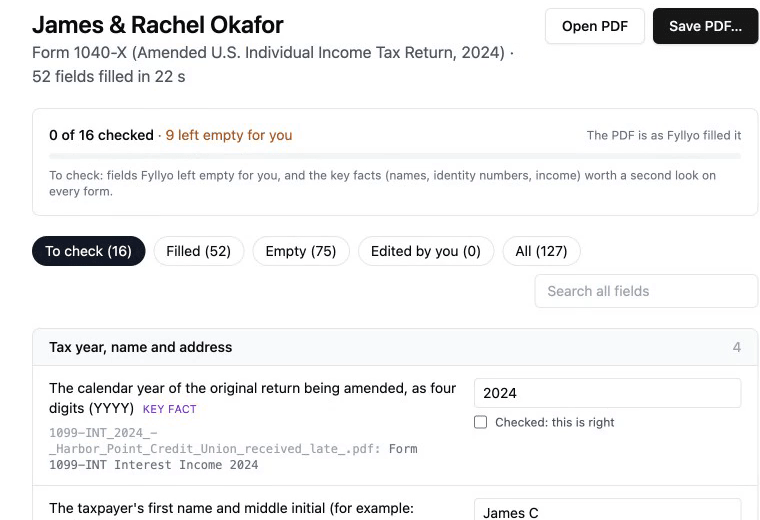
Watch the recorded example or follow the full walkthrough. The useful question is whether this is the reading, calculation and transfer work you currently do.
What should you test before choosing?
Use one representative form and source bundle, then inspect the saved PDF. A convincing demo on someone else’s documents does not establish fit for every form you use.
- Check the starting PDF. Fyllyo custom setup starts with a blank fillable PDF, with fields you can type into. A scan may be usable as supporting evidence without being a suitable output template.
- Check your Mac. Fyllyo requires Apple silicon, M1 or later. About 16 GB memory is recommended, with about 8 GB free disk space. The local model downloads once and is about 5 GB.
- Give the method realistic inputs. Choose allowed fictional or appropriately prepared sample documents, including a missing fact you expect to review.
- Inspect important values. Confirm names, identifiers, dates, calculations and checkboxes against the sources. Correct the result before saving.
- Open the saved PDF. Check that the values appear in the intended fields and the file is usable for your next step.
- Evaluate repeated use. Check template reuse, any new setup charge and the practical work left for you. Two separate fills do not imply a batch feature.
Find your form in the built-in library, or use the custom-template tutorial for your own fillable PDF. If your job requires other editing, filing or integration features, establish those separately.
Sources and comparison scope
Documentation checked October 14, 2026. The comparison describes documented task fit. No matched accuracy, speed or usability test across these products was performed.