 fyllyo
Can’t type in a PDF on Mac? Five causes and the fix for each
Usually the PDF has no form fields, so there’s nothing to type into. You can still add text on top of the page. In Preview, use the Text Box tool. In Fyllyo, use Annotate, then Text. If the form shows “Please wait…”, has one box that won’t take typing, or was locked by whoever sent it, the fix is different. Find yours below.
Find your cause
| What you see | Why | The fix |
|---|---|---|
| You click the page and nothing happens. No boxes light up. | The PDF has no form fields. It may be a scan, or a form that was printed to PDF. | Add a text box on top of each line. In Preview, click Show Form Filling Toolbar, then Text Box. In Fyllyo, choose Annotate, then Text (the first T icon). |
| “Please wait… If this message is not eventually replaced…” | It’s a dynamic XFA form. Preview can’t build it. | Open it in Fyllyo, for free. For forms with a Validate button, such as IRCC’s, use Acrobat Reader. How to open a “Please wait…” PDF |
| Most boxes work, but one won’t take typing. | That field is read-only, often an “Office use only” box. The form’s maker set it that way. | Leave it. It’s meant for whoever receives the form. |
| None of the boxes take typing, in any app you try. | Whoever made the PDF may have turned off form filling with a permissions password. | Ask the sender for a copy you can fill. |
| The form is signed or certified. | A signature or certification can stop later changes. | Fyllyo saves what you type into a signed form without breaking its signature. If a certification allows no changes, Fyllyo won’t save changes that would break it, and says why. |
How do I type on a PDF that has no form fields?
Add text on top of the page. It works on any PDF, including scans. Apple’s own advice for Preview (checked October 24, 2026) is the same: if a PDF won’t let you type into the form, add a text box instead.
- In Preview: click Show Form Filling Toolbar, then the Text Box tool, and click where the answer goes.
- In Fyllyo: choose Annotate, then Text (the first T icon), and click the line. Type your answer, then click anywhere on the page to finish.
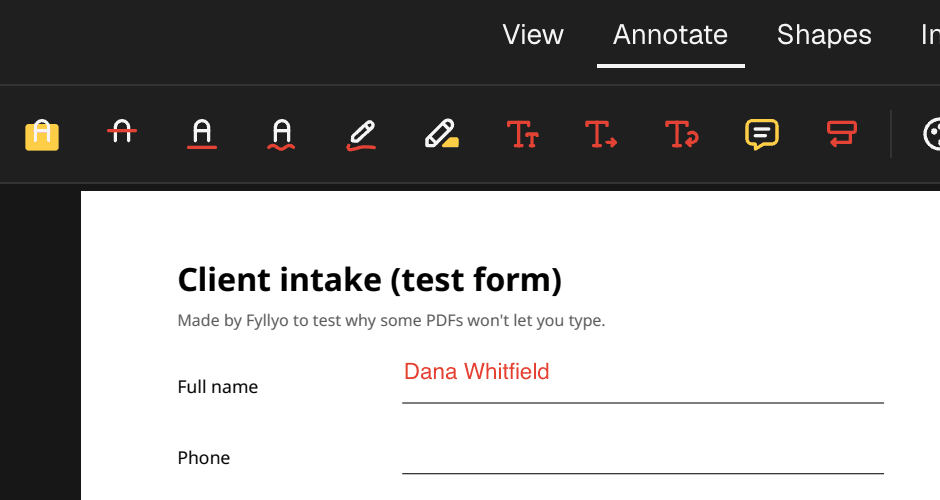
If the PDF is a scan, Fyllyo can also recognize its text, so you can search and copy it. That doesn’t add form fields, so you still type with the Text tool.
Why does the form say “Please wait…”?
It’s a dynamic XFA form, an older Adobe format that many government forms still use. Preview shows only the placeholder page, so there’s nothing to type into. Fyllyo builds the real form, and you can type into it and save it. Fyllyo doesn’t run buttons such as Validate yet. For forms with a Validate button, such as IRCC’s, use Acrobat Reader.
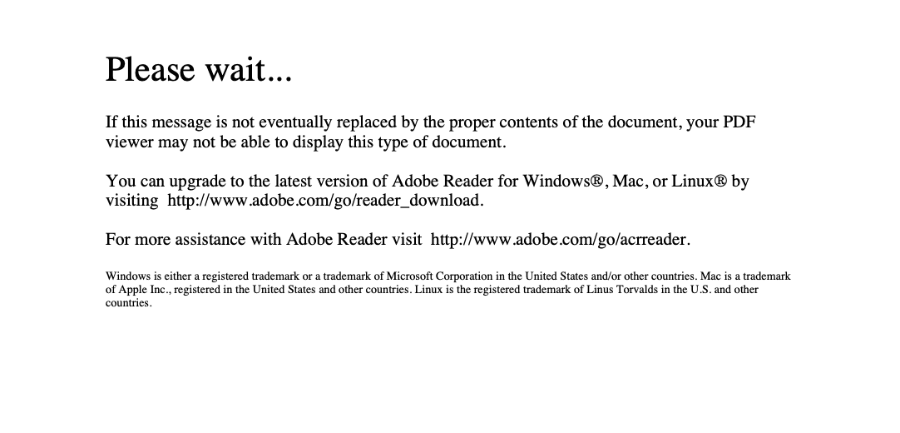
In Preview: only the “Please wait…” placeholder. There are no fields to type in.
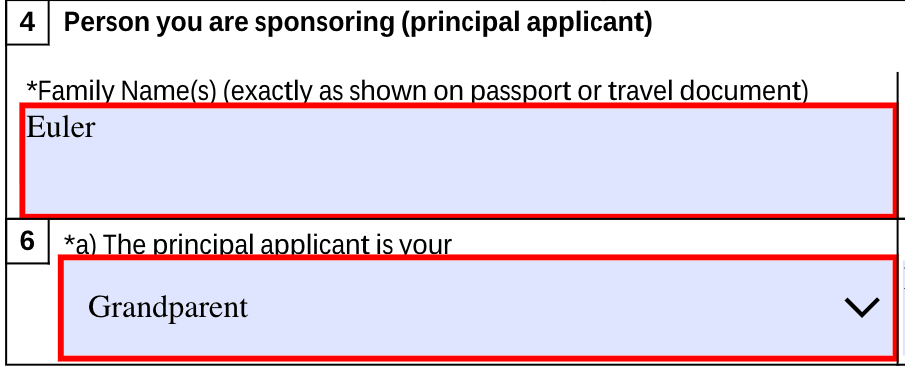
The same file in Fyllyo: the real form, with fields you can type in.
See which government forms are XFA, or read how to open a “Please wait…” PDF on a Mac.
How did we test it?
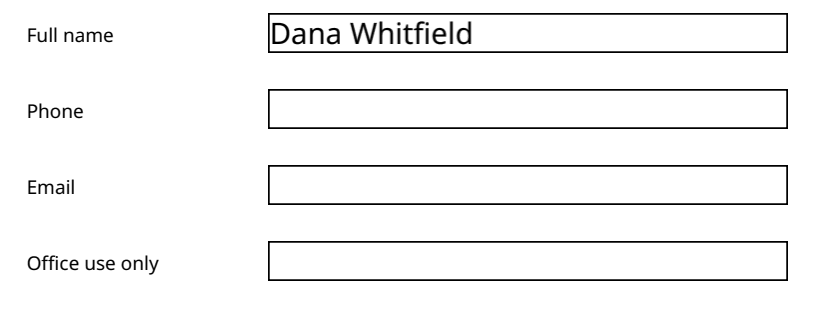
On October 24, 2026 we made the same one-page client intake form two ways, for a test client. One copy has no form fields, only lines. The other has a text field on each line, and its “Office use only” field is read-only. We opened both in Fyllyo and tried to type a name on each line.
| Test file | Clicking a line | How we typed the name |
|---|---|---|
| No form fields | Nothing to click into | Annotate, then Text, then click the line |
| Form fields | The field takes typing | Typed straight into the field |
| Read-only “Office use only” field | The field doesn’t take typing | Not needed: it’s for the office |
Can I try the test files?
Download them and open them in any PDF app:
You’re welcome to use the files and these results, with a link back to this page. Filling the same form for client after client? Fyllyo Paid fills it from your documents, on your Mac.