 fyllyo
Filled a signed PDF in Preview on Mac? What happens to the signature
Preview lets you type into a signed PDF form and saves it without a warning. In our test that save made the signature unreadable, and the same save by macOS’s PDF engine, which Preview uses, left no signature at all in Acrobat. To fill a signed form on a Mac and keep its signature, use an app that adds your entries as a new revision, such as Fyllyo, free. Acrobat then shows the signed version unaltered, with your entries listed as form fields filled in.
Find your problem
| What you see | Why | The fix |
|---|---|---|
| You filled a signed PDF in Preview, and now the signature is gone | Preview rewrites the whole file when it saves. A signature covers the exact bytes that were signed, so it no longer matches. | Fill the signed original in an app that adds your entries as a new revision, such as Fyllyo, free. |
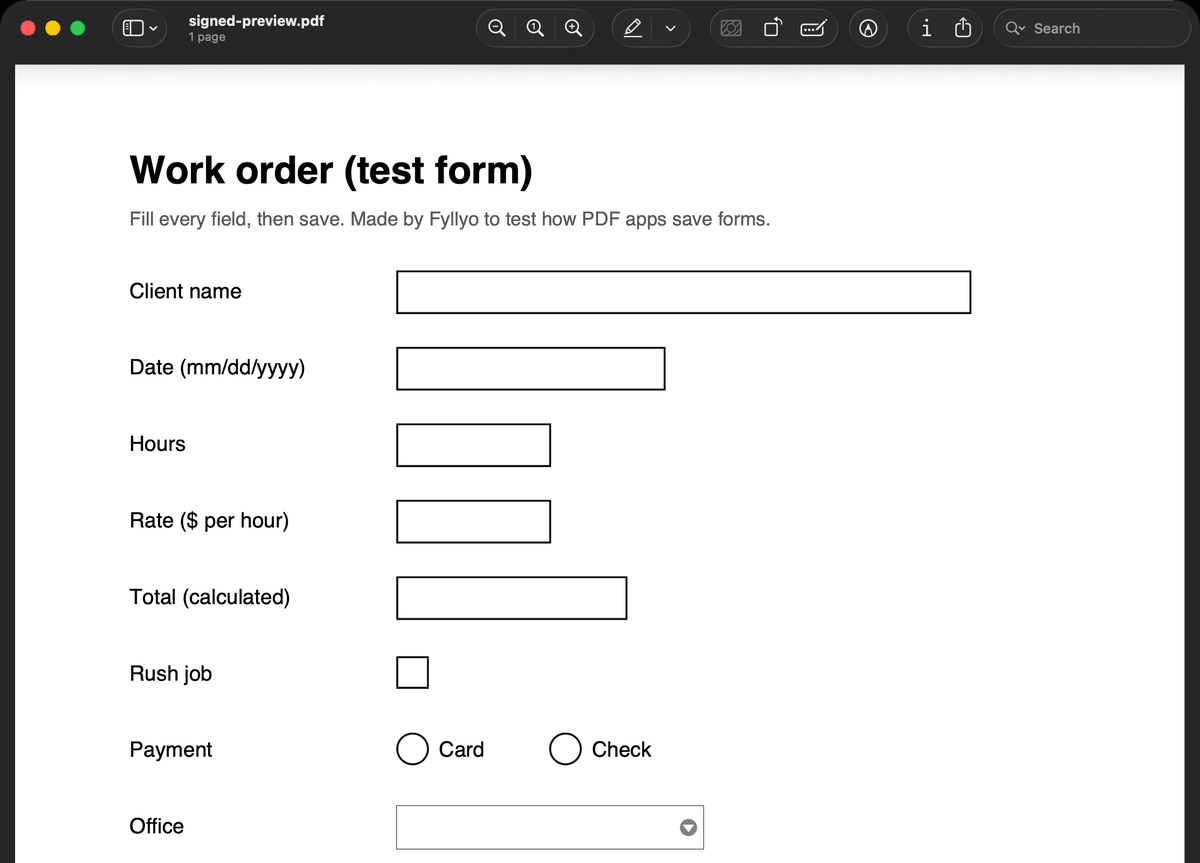
| Preview doesn’t show that a PDF is signed | In our test, Preview opened a signed form with no notice that it was signed, and let us type into it. | Open it in Fyllyo or Acrobat Reader: both show who signed it and what changed since. |
| You need to change pages, text or redact a signed PDF | Those changes alter what was signed, so the signature can’t stay valid. | In Fyllyo, use Edit a copy… in the signature bar: a copy without the signature, where every tool works. Then have it signed again. |
How did we test signed PDFs on a Mac?
We made a one-page work order with form fields and signed it with a test certificate, the way a sender signs a form before you fill in the rest. Then, from October 25 to 27, 2026, we typed a client name into the signed form and saved it three ways:
- in Preview on macOS 26.2;
- with macOS’s own PDF engine, which Preview saves with;
- in Fyllyo.
Preview’s save and the macOS engine’s save came out the same way: the whole file rewritten, with the signature data no longer readable. We opened the macOS-engine copy and the Fyllyo copy in the Signature Panel of Adobe Acrobat Reader, Adobe’s free reader.
What did each app do to the signature?
| Preview / macOS PDF engine (macOS 26.2) | Fyllyo | |
|---|---|---|
| Warned that the PDF is signed | No | Yes: who signed it and what changed since |
| Asked anything when saving | No | No. It saves your entries as a new revision. |
| The file after saving | Rewritten: 16 KB became 63 KB | The signed bytes untouched, your entries added after them |
| Acrobat’s Signature Panel | No signature at all | “This revision of the document has not been altered”, then “Form Fields Filled In: client_name” |
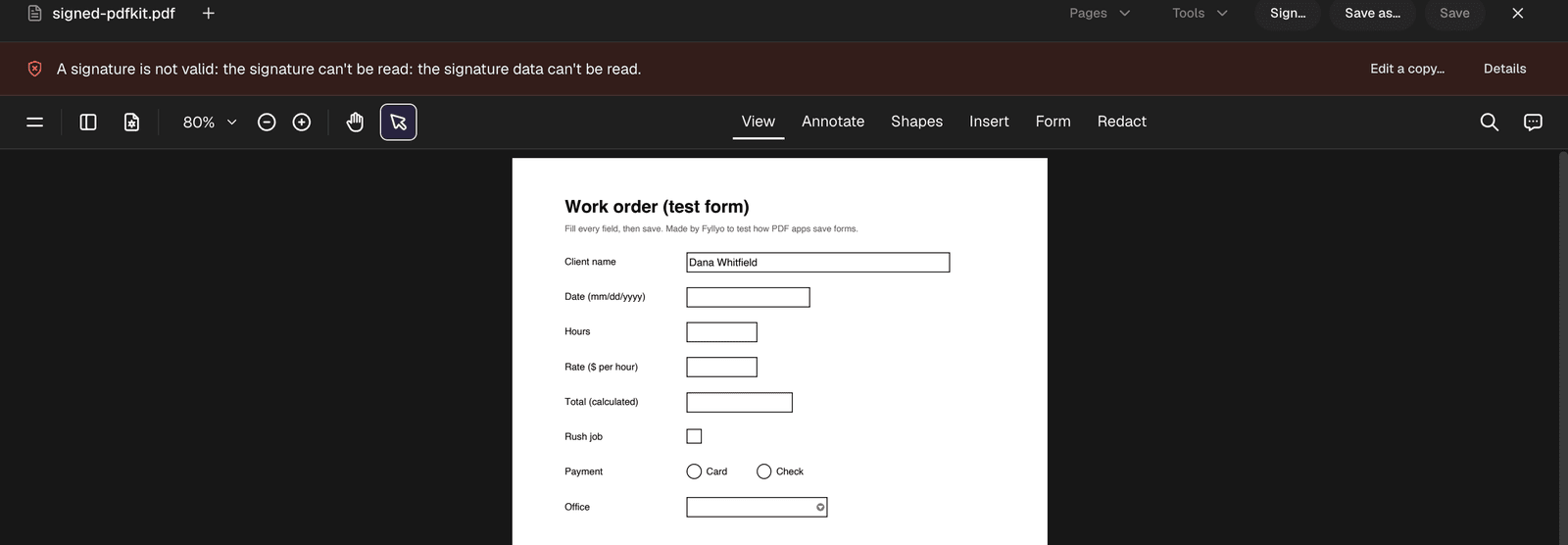
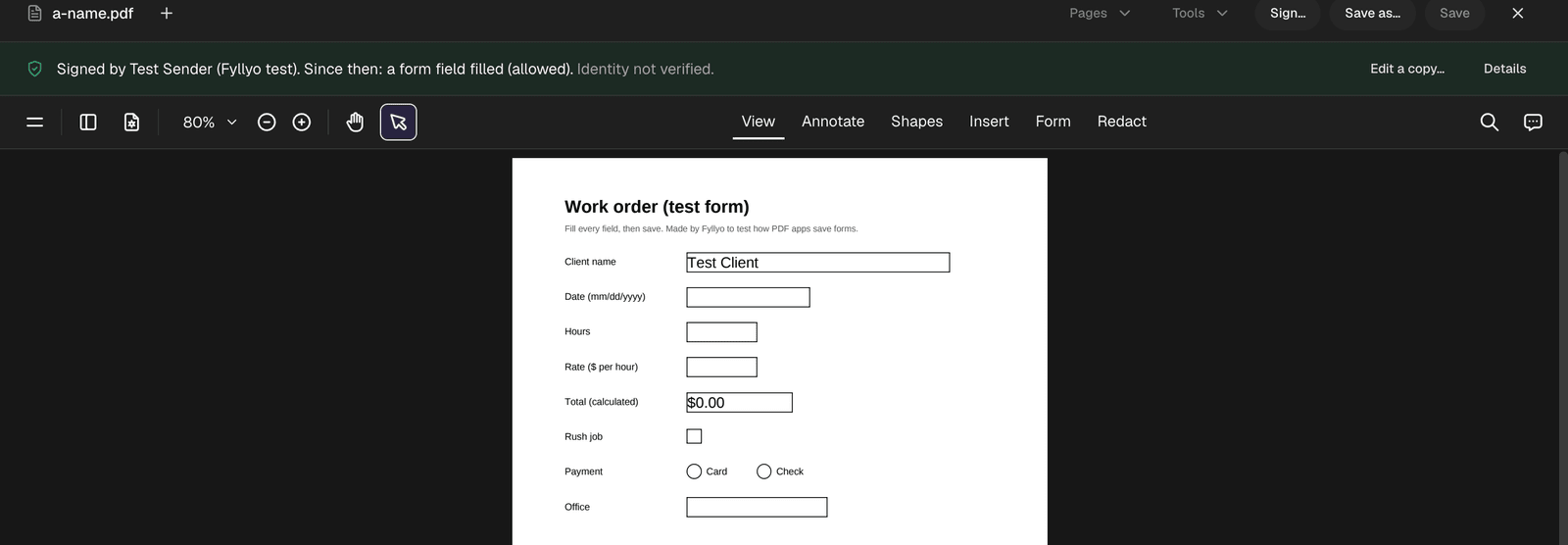
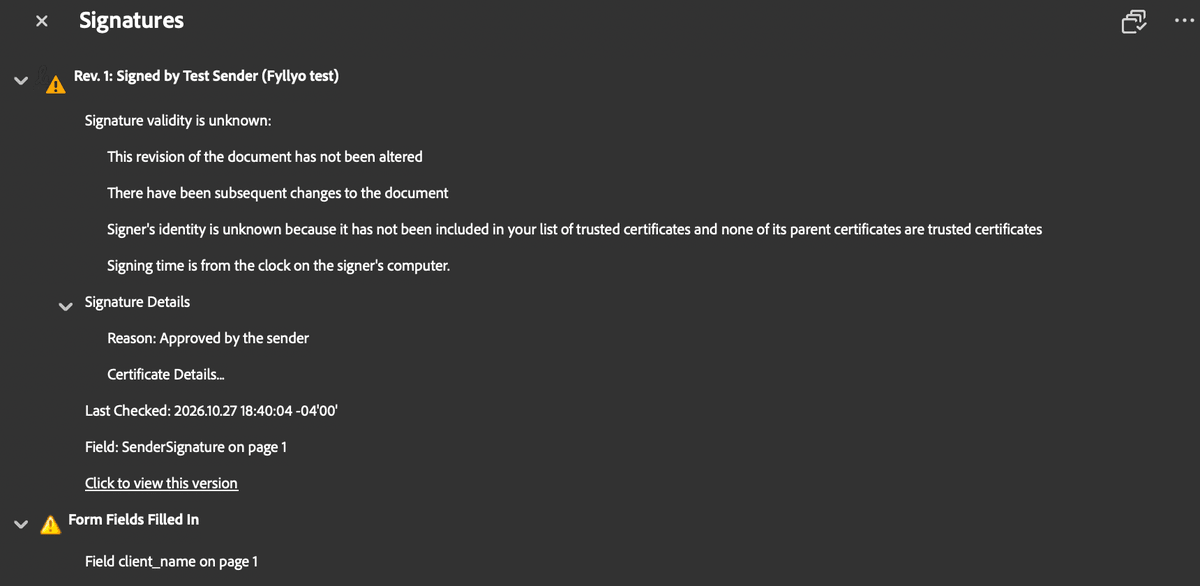
The Preview result is the one to remember. Nothing looked wrong in Preview. The signature simply no longer checked out.
Why does saving a signed PDF in Preview break the signature?
A digital signature is a seal over the exact bytes of the file at the moment it was signed. The PDF format allows changes after signing only when they’re added after those bytes, as a new revision. A form fill added that way leaves the seal intact, and signature checkers can list what changed.
Preview doesn’t do that. When it saves, macOS writes the whole file again, so the signed bytes are gone and the seal can’t match anything. In our test Preview’s save grew the file from 16,138 to 62,956 bytes with the signature data unreadable, and the macOS engine’s save showed no signature at all in Acrobat.
Can I check the test files myself?
Download them and open each one in Acrobat Reader’s Signature Panel:
- The signed test form, never edited
- Filled and saved by macOS’s PDF engine, as Preview does
- Filled and saved in Fyllyo
The certificate is a test certificate made for this, so Acrobat will say the signer’s identity is unknown. You’re welcome to use the files and these results, with a link back to this page.
How to fill a signed PDF on a Mac without breaking the signature
- Keep the signed original. If you already saved it in Preview, that copy’s signature is gone; go back to the file you were sent.
- Open it in an app that checks signatures. Fyllyo does, for free: a bar shows who signed it and what changed since.
- Fill in the form fields and save. Fyllyo adds your entries as a new revision, so the signature stays intact.
- Need to change more than the fields? Use Edit a copy… to get an unsigned copy, then have it signed again.
Signing a PDF yourself? See how to sign a PDF with a certificate on a Mac. Wondering what else Preview does to forms? Read our Preview forms test.