 fyllyo
10 things Mac Preview gets wrong with PDFs: we tested each one
We tested Mac Preview on the PDF jobs people use it for, on macOS 26.2, and it got 10 things wrong. Saving a form deleted all 4 of its scripts, saving a signed form broke the signature, its redaction left a test client’s name in 3 places, and saving a form locked every auto-size box at 12 pt. Here are all 10, each with its test and files, and the free fix.
What does Preview get wrong with PDFs?
| # | What Preview did | In our test | Details |
|---|---|---|---|
| 1 | Saving a PDF form deleted its scripts | All 4 of the form’s scripts gone | See the test |
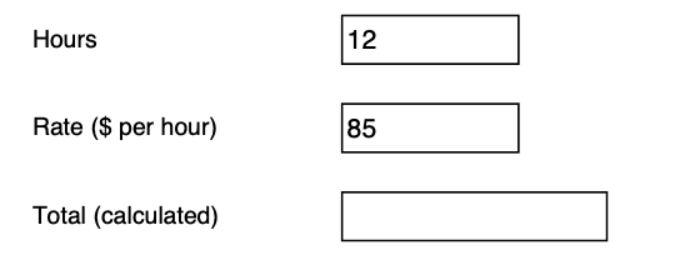
| 2 | Totals never calculated | 12 × $85 stayed empty, in Preview and later in Acrobat Reader | See the test |
| 3 | Money and date formats were deleted with the scripts | The total and date can’t format in any app | See the test |
| 4 | The form’s structure was rewritten | 9 field boxes dropped out of the form’s field list | See the test |
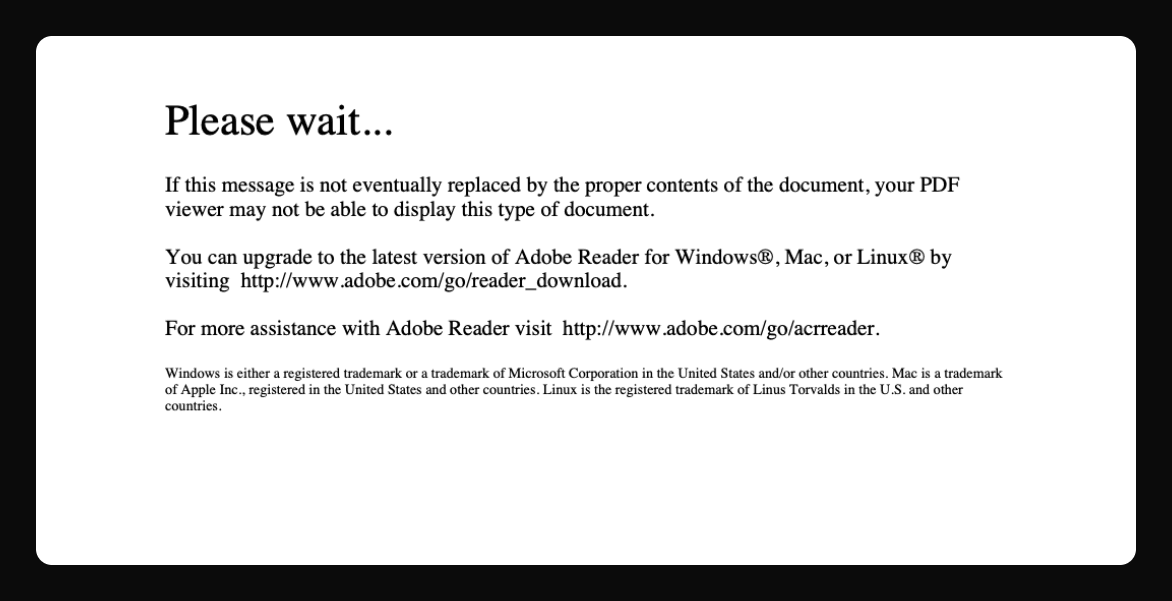
| 5 | Dynamic XFA forms show only “Please wait…” | 1 of the 32 government forms we checked | See the test |
| 6 | No sign that a PDF is signed | Preview let us type straight into a signed form | See the test |
| 7 | Saving a signed form broke the signature | Signature data unreadable; Acrobat Reader found no signature | See the test |
| 8 | Auto-size text boxes became a fixed 12 pt | All 4 fields, including ones nobody touched | See the test |
| 9 | Long text in a multi-line box is cut off on screen | The last 6 words of our notes missing | See the test |
| 10 | Redaction left the name in the file | Still in 3 of the 4 places it appeared | See the test |
Preview is still fine for reading PDFs and for simple forms. In our tests it saved typed text, checkboxes, radio buttons and dropdowns, and those values showed in Chrome, Firefox’s viewer and Acrobat Reader. The trouble starts with anything a form does by itself, anything signed, and anything you need gone for good.
What does Preview do to a PDF form when you save it? (1–4)
On October 23, 2026 we filled a one-page test work order in Preview: 12 hours at $85, a date, a checkbox, radio buttons and a dropdown. Then we saved it and looked inside the file with qpdf, an open-source PDF tool.
- All 4 of the form’s scripts were deleted. Scripts are what make a form work out totals, format amounts and check dates.
- The total never calculated. It stayed empty in Preview. On October 28 we opened the saved copy in Adobe Acrobat Reader on a Mac, and it was still empty there: the script that works it out was gone.
- The money and date formats went with them. They can’t run in any app, so amounts and dates no longer format, even in Acrobat.
- The form’s structure was rewritten. 9 field boxes on the page dropped out of the form’s field list.
Why does a PDF show “Please wait…” in Preview? (5)
Because it’s a dynamic XFA form, and Preview can’t build those. It shows only the placeholder text. It’s rarer than forum threads suggest: of 32 government PDFs we checked on October 23, 2026, 27 carried XFA, but only one, Canada’s IMM 1344, was dynamic.
See which of the 32 forms are XFA, or how to open a “Please wait…” PDF on a Mac.
Does Preview break signed PDFs? (6–7)
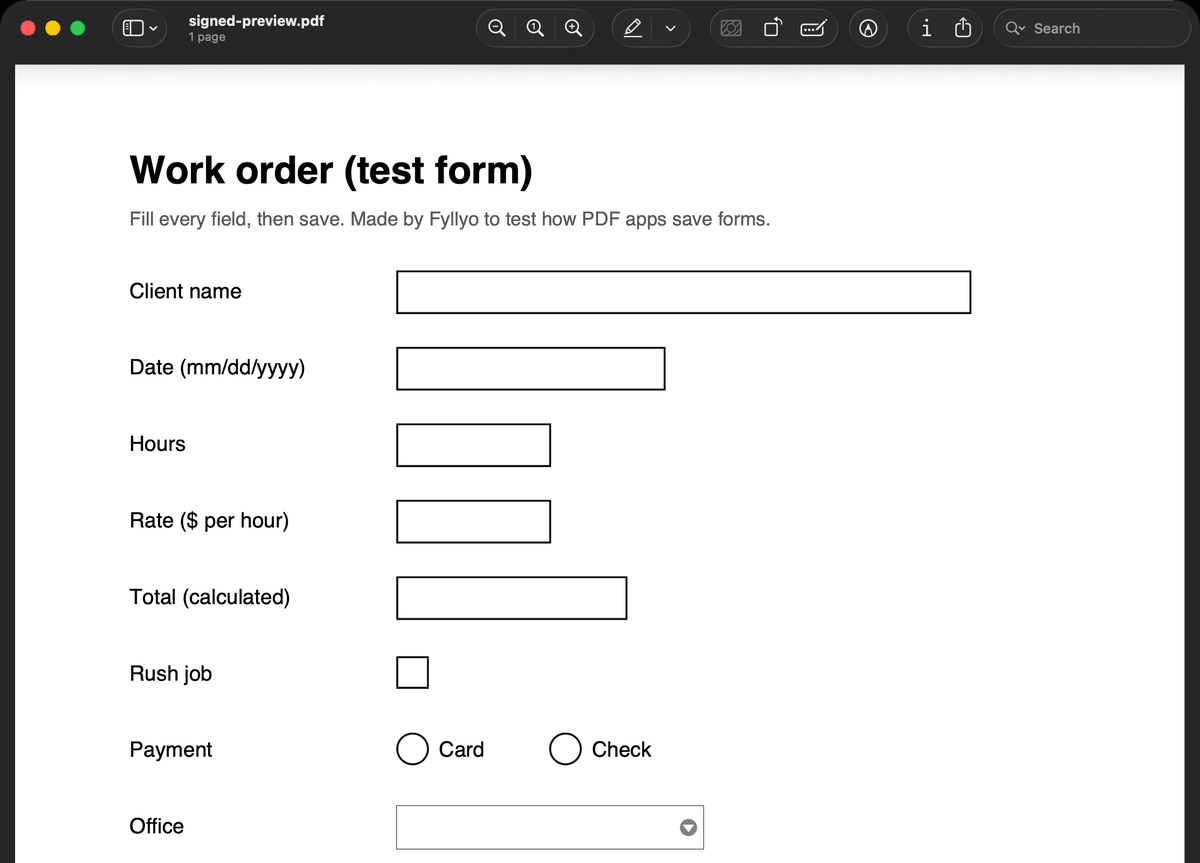
In our test, yes. From October 25 to 27, 2026 we signed a test work order with a test certificate, then typed a name into it.
- No sign that it was signed. Preview opened the signed form with no notice, and let us type straight into it.
- Saving broke the signature. Preview rewrote the whole file, and the signature data could no longer be read. After the same save by macOS’s PDF engine, which Preview saves with, Acrobat Reader’s Signature Panel found no signature at all.
Read the signed PDF test, with the Acrobat results and files.
Why does text get cut off in a PDF form saved in Preview? (8–9)
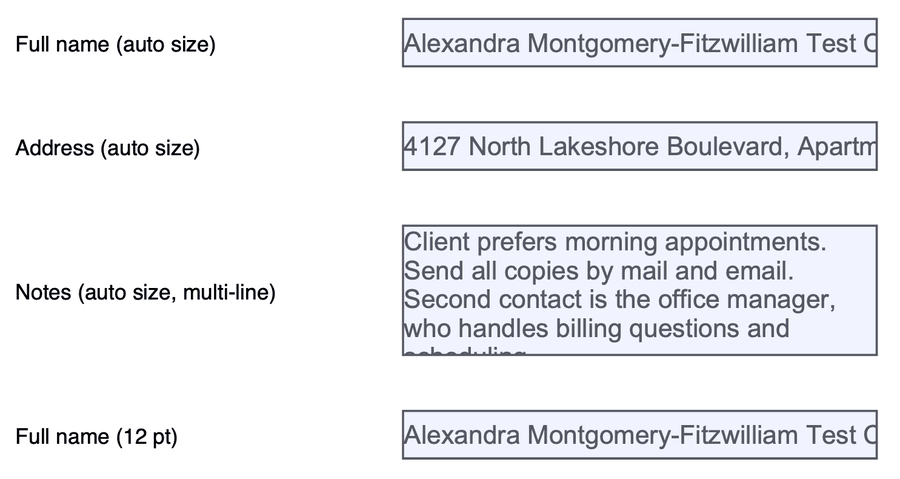
Many forms set their boxes to auto size, so long entries shrink to fit. On October 28, 2026 we tested it with a form of four boxes.
- Saving locked every auto-size box at 12 pt. In the Preview app we typed only a long address and saved. Preview changed all 4 boxes to a fixed 12 pt, including the ones nobody touched. When we saved the same long entries with macOS’s PDF engine, which Preview saves with, all 3 in auto-size boxes were cut off in Chrome.
- Multi-line boxes don’t shrink on a Mac. macOS shrank long text in one-line boxes, but in a multi-line notes box it left the text full size and cut off the last 6 words.
Is Preview’s redaction safe? (10)
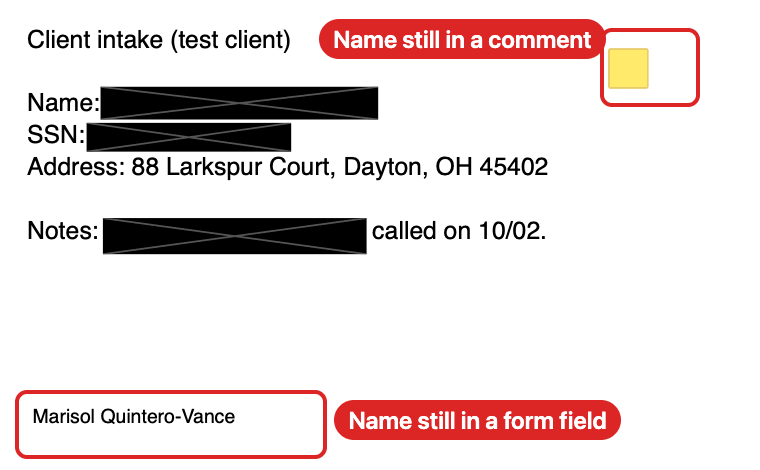
Not fully. On October 22, 2026 we redacted a test client’s name and SSN with Preview’s Redact tool. The text under the black boxes was gone, but the name was still in 3 of the 4 places it appeared in the file: a form field, a comment and the document’s details. Anyone who opens the file can read them.
How to avoid all 10 on a Mac
Use Preview to read. For forms, signed PDFs and redaction, use an app built for them. Fyllyo does all of it for free, on your Mac:
- Forms: it runs the form’s scripts, so totals work out as you type ($1,020.00 in our test), and it keeps them when it saves.
- XFA: it opens, fills and prints most XFA forms.
- Signed PDFs: it shows who signed and what changed since, and saves your entries as a new revision. Acrobat Reader showed our signed revision unaltered.
- Long entries: it shrinks text in auto-size boxes as you type and keeps auto size when it saves.
- Redaction: its Find and redact removed the name from all 4 places in our test.
You’re welcome to use these results, with a link back to this page. Each test page has its files to download.